Overview
Mediasite will provide a transcript of captioned material for download through the MyMediasite portal by the owner of the presentation (or others who have been permitted to do so through MyMediasite). The transcript is a simple listing of all captions without a timestamp, not a narrative of the presentation.
Procedure
In order to download a transcript, you will need to access your presentation through your MyMediasite portal. You can only download the transcript to a presentation you have write/edit access to.
- Navigate to the MyMediasite portal and log in using your RCSID credentials and Duo.
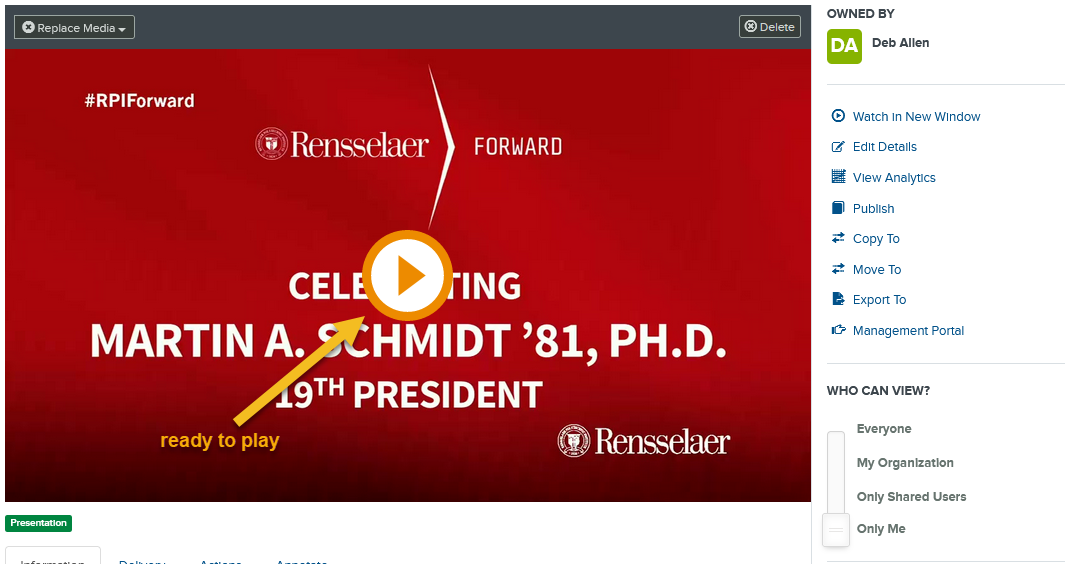
- Locate the presentation you to which you wish to add captions, and click on the title to open it.
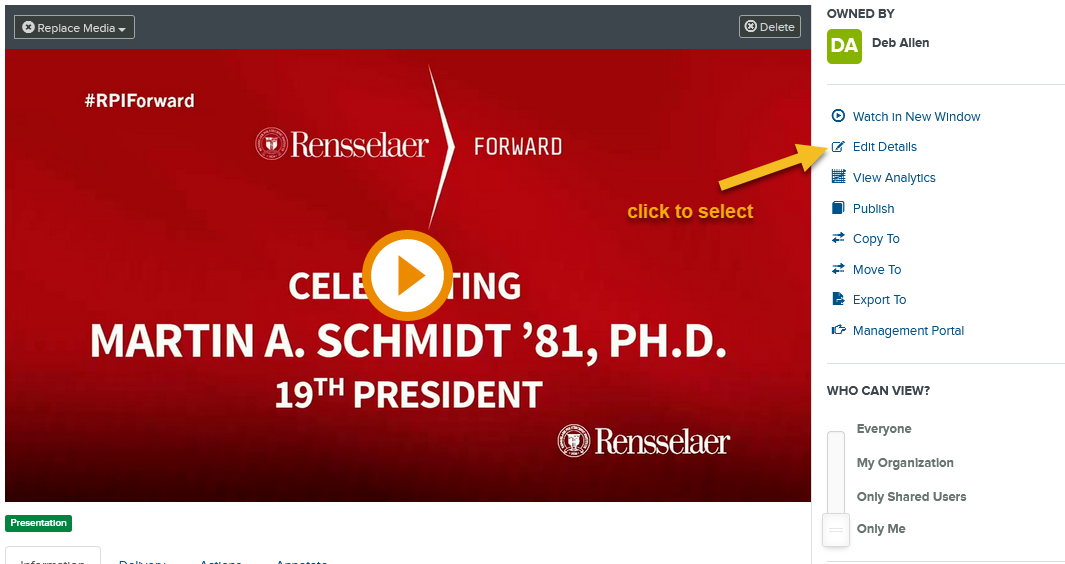
- On the right hand menu, select Edit Details.
- Scroll down to the bottom, and on the bottom right, click Download to Computer.

- A dialog box will be displayed. Click Download Transcript. A ".txt" file with the name of the presentation will be downloaded to your computer based on the download settings for your browser.

If the Download Transcript option is not available:
If the Download Transcription option is not available when you select Download to Computer, you need to ensure captions have been added to the presentation.
- While in Edit Details mode, scroll down to the bottom, and look just below the video. You should see a red box stating Captions.

- If the box labeled Captions does not appear, you will need to add captions to the presentation first, according to the information in this article: Creating Content: Adding Captions with Vidable
- If the box labeled Captions is there, but you still do not have the ability to download a transcript, there may be an issue with the captions. Please file a support request and be sure to include as much information about the presentation as possible, including the name of the presentation and a link to it.
References/Links
Last Reviewed: 02-MAR-2023